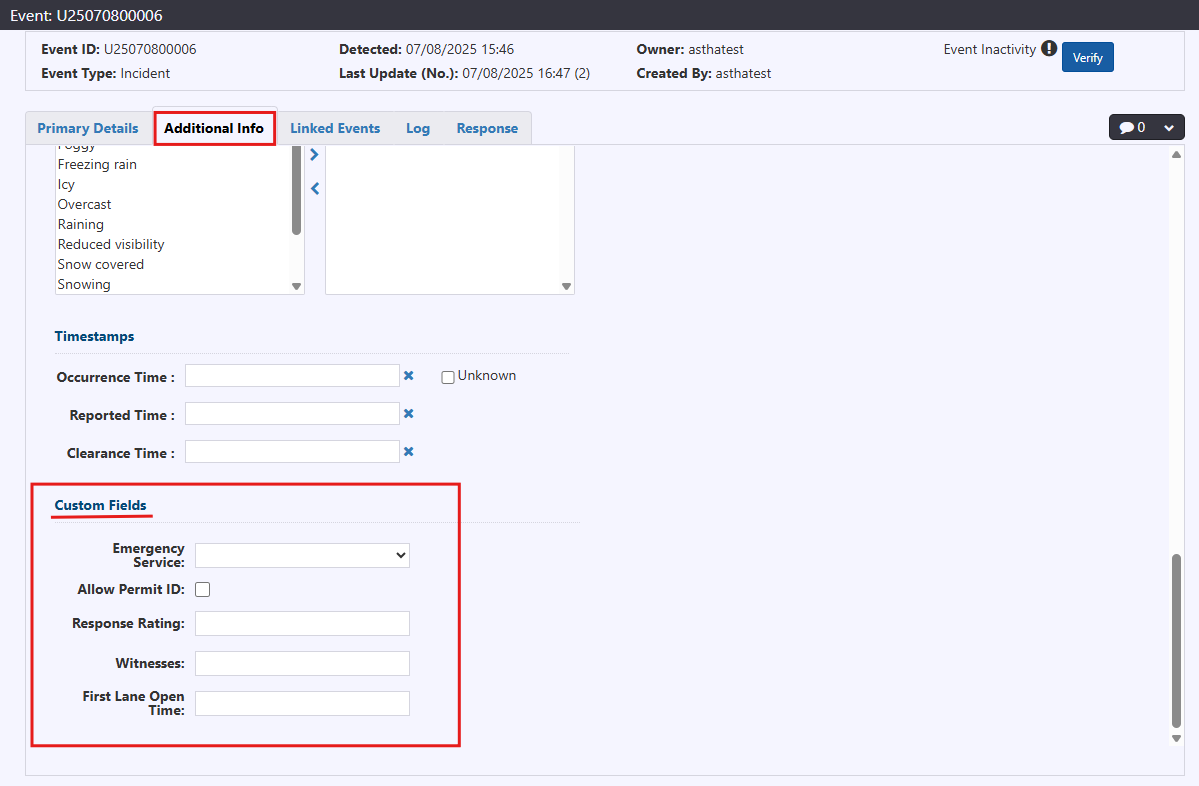
Additional Info
The Additional Info tab is used to record supplementary information about the event, such as responder vehicles, road or weather conditions and vehicles involved in the event. It can be accessed from the Event Details window, adjacent to the Primary Details tab. This tab is only available for Incidents.
Images
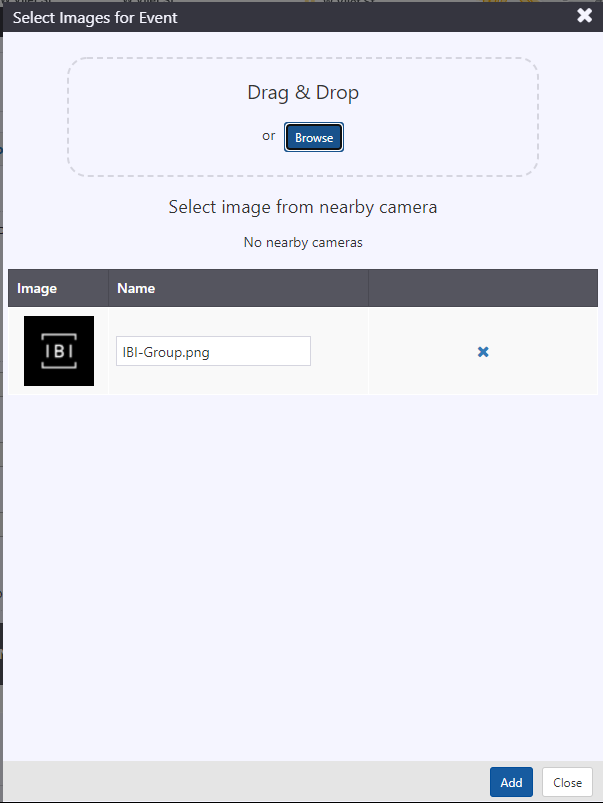
To add images to the event record, click the Attach Image button in the Additional Info tab.

Drag & Drop or click Browse to add an image. Click Add button to add the images.
:::note
Maximum upload limit: 5 MB
:::
Documents and Videos
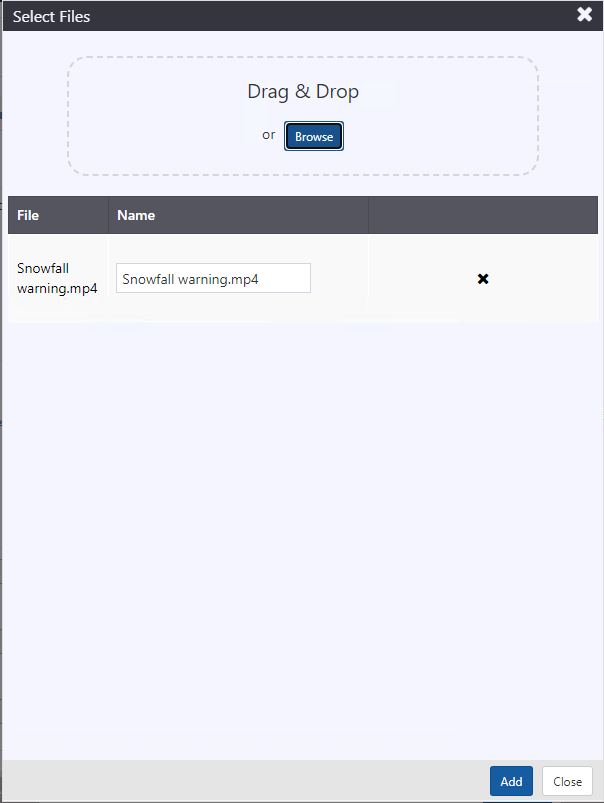
To add documents to the event record, click the Attach Documents button in the Additional Info tab.
To add video clips to the event record, click the Attach Videos button in the Additional Info tab.

Drag & Drop or click Browse to add an document or video. Click Add button.
:::note
Maximum upload limit for document: 20 MB
Maximum upload limit for video: 240 KB
:::
Contacts
Select Handling Agency contact to add Contacts.

Record Responder Vehicles
To keep a record of agencies that responded to an event, click the Add Responder button in the top-right corner of the Responder Vehicles area. A set of editable fields will appear.

Select or enter information in the fields presented with the appropriate details at the time of this Responder Vehicle record creation or during any subsequent updates:
- Agency : select the pertaining Agency from the dropdown list.
- Registration: include registration number of the selected vehicle.
- Notified : click in the field to select the time the Agency was notified. A calendar will be displayed for selecting date and time.
- Arrived : click in the field to select the time the first vehicle from the Agency arrived. A calendar will be displayed for selecting date and time.
- Departed : click in the field to select the time the last vehicle from the Agency departed. A calendar will be displayed for selecting date and time.
- Notes: include any other details associated with this Responder.
- No Show: select this checkbox if an agency/vehicle was notified but never arrived at the scene
Click  to save the record. Click
  to discard the record. Click Save in the Event Details window to save the Responder Vehicles information to the event record.

To update an existing Responder Vehicle record, click  in the same row and update the field(s) as described as above. Click Save in the Event Details window to save the updates to the Responder Vehicles information the event record.
Record Vehicles Involved
To keep a record of Vehicles Involved in the event, click the Add Vehicle button in the top-right corner of the Vehicles Involved area. A set of editable fields will appear.

Select or enter information in the fields presented with the appropriate details at the time of this Vehicles Involved record creation or during any subsequent updates:
- Type : type of vehicle.
- Make : Make type of the vehicle.
- Model : model type of vehicle.
- Color : select color of the vehicle.
- License Plate : add license plate number of the vehicle. Select the place from where the license is issued.
Click to save the record. Click to discard the record. Click Save in the Event Details window to save the Vehicles Involved information to the event record.
To update an existing Vehicles Involved record, click in the same row and update the field(s) as described as above. To save the updates to the Vehicles Involved information the event record, click in the Vehicles Involved window.
Record Road and Weather Conditions
To Record Road and Weather Conditions at the time of the event, select all appropriate Conditions in the Conditions list, found in the Conditions area.
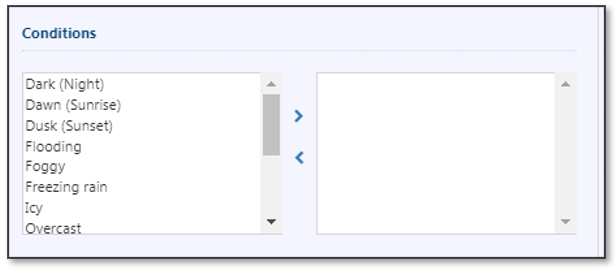
Click  to add selected conditions to the event, selected conditions will appear in the right hand portion of the Conditions section.
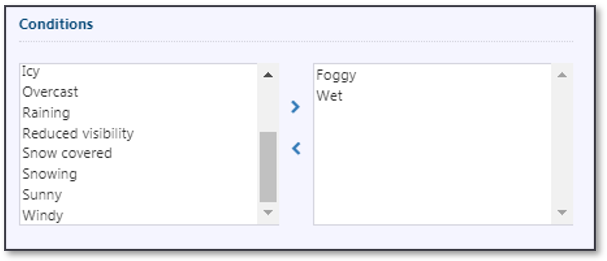
Click Save in the Event Details window to save the Conditions information to the event record.
To remove conditions from an event, select the respective conditions and click  . Click Save in the Event Details window to save the updated conditions in the event record.
Timestamps
To add or modify the Occurrence Time, Reported Time and/or Clearance Time of the event, click in the date entry field for the desired timestamp and select a date and time from the datetime picker.
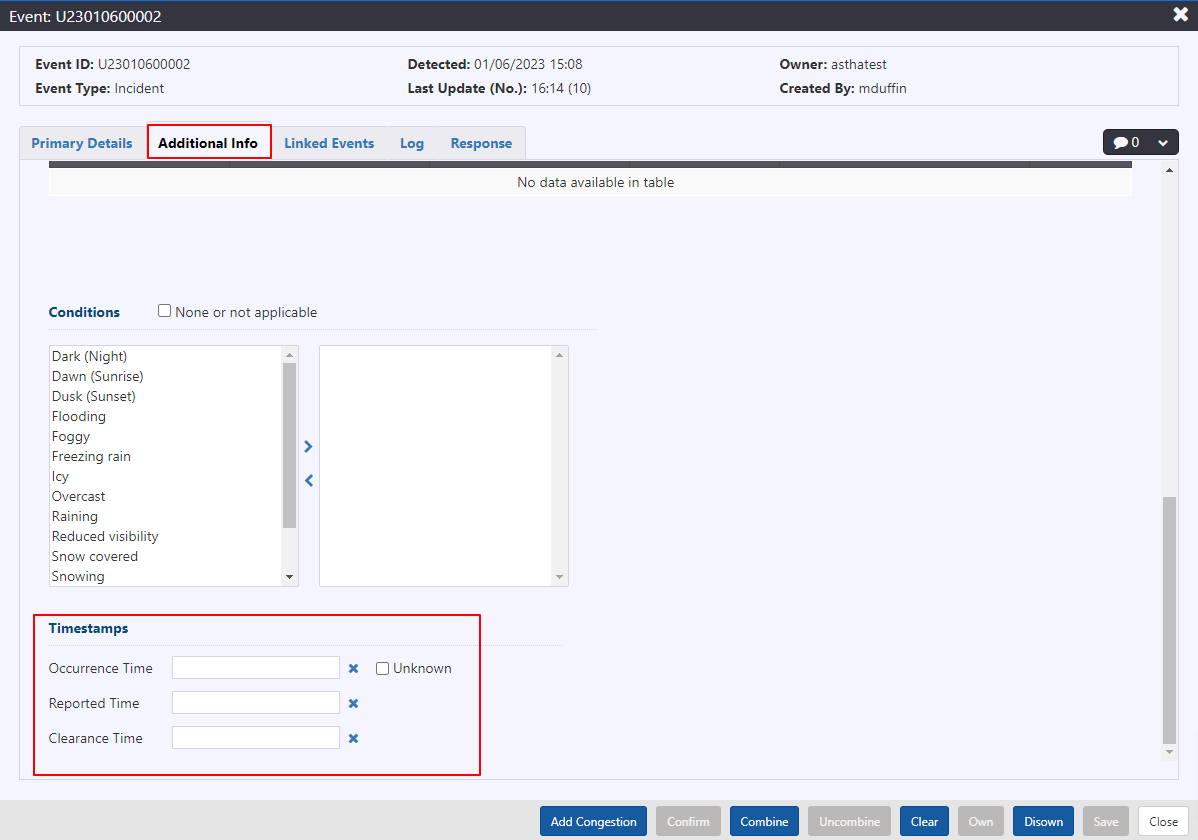
Select Unknown checkbox if Occurrence time is unknown.
Click to clear timestamp from the event.
Record Injuries
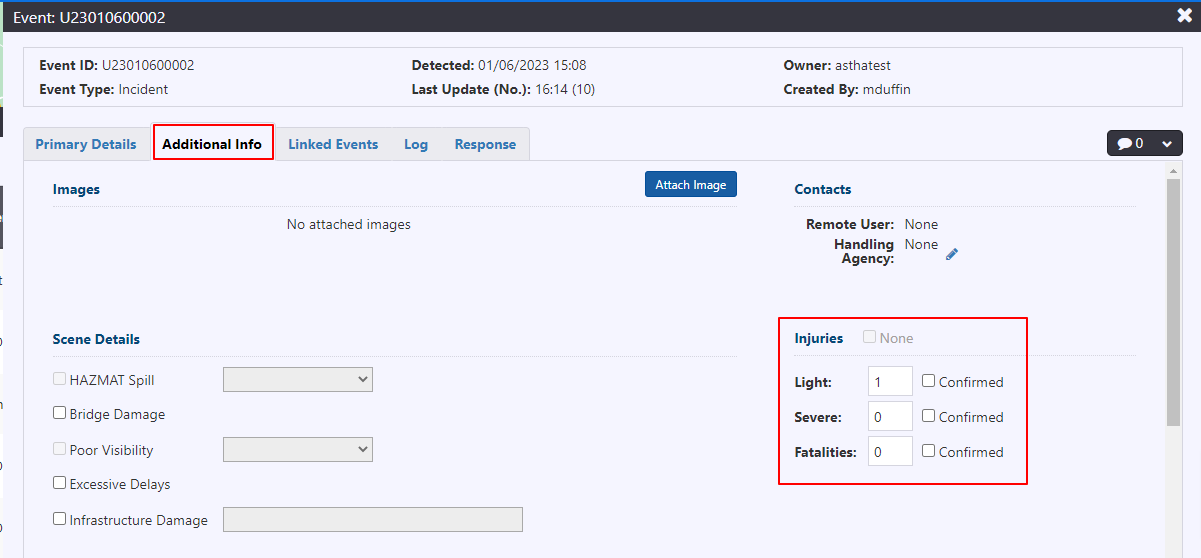
To indicate there are any injuries reported for the event, click the Additional Info tab and add the Injuries.
Select and confirm the type and intensity of the Injury : Light, Severe, Fatalities.
Custom Fields
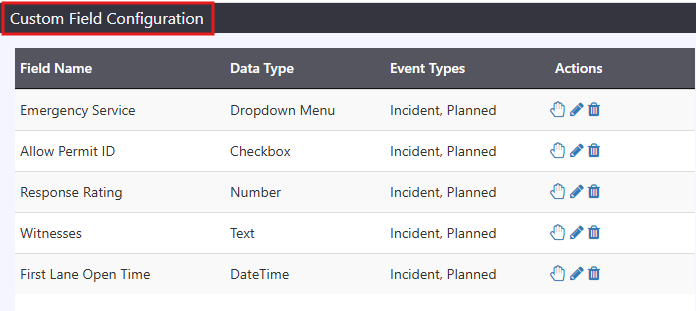
Users with the appropriate permissions and access rights can create and manage custom fields for events.
To Create a Custom Field:
- From the navigation panel, click Event Custom Fields.
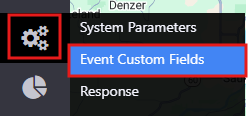
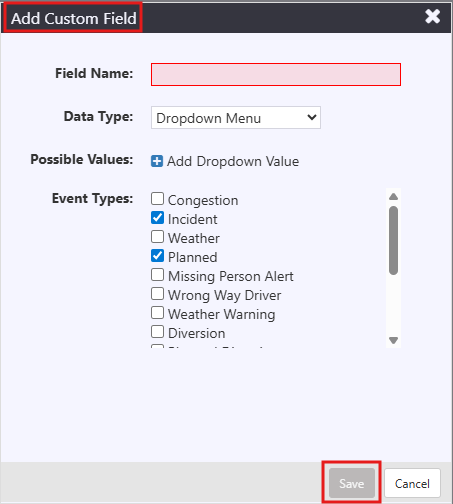
Click Add Custom Field.
Enter the Field Name, select the Data Type, and choose the relevant Event Types.
Click Save to create the custom field.
To Adjust Field Placement:
- Reorder custom fields by dragging them using the
 icon.
icon.
To View Custom Fields in an Event:
Open the event associated with the custom field.
Go to the Additional Info tab to view the field and its value.