Signals
Signals are represented by the  on the action panel. You can use the ATMS to:
- View signals on the map
- View status and location details of the signal
- Ability to Enable/Disable a signal
- View properties of the signal
- View device comments of teh signal
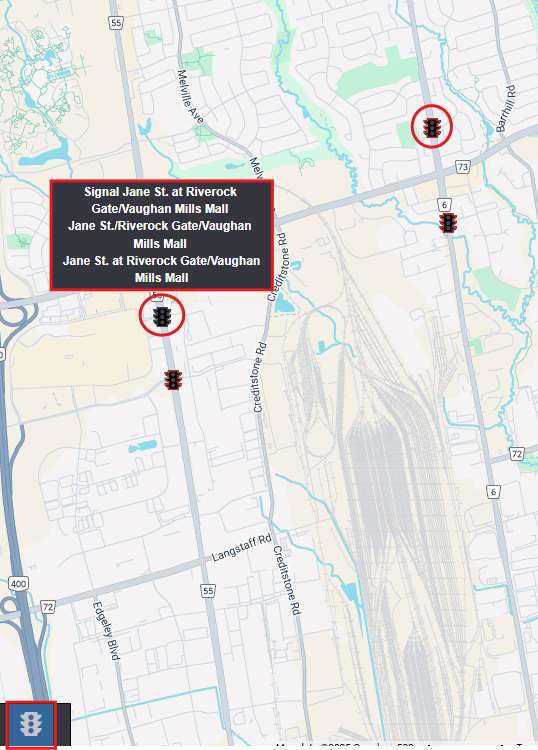
Turn the Signal Layer On or Off
To turn the Signal layer on or off, click the on the action panel. When the Signal layer is displayed, the icon is highlighted.

Signal Icons
The Signal icons indicate whether or not the Signal is available for use:
| ICON | STATUS | DESCRIPTION |
|---|---|---|
| Ok | The signal is fully operational and communicating. |
 | Disabled | The signal is disabled and not in use. |
 | Warning | The signal is unable to reach the device |
 | Error | The signal is not communicating or has a error preventing the ATMS from retrieving any data. |
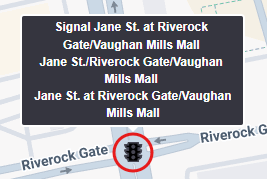
Signal display Id, Roadname, Description, along with device comments (if any) are seen on hovering the Signal icon on ATMS map.
View the signal List
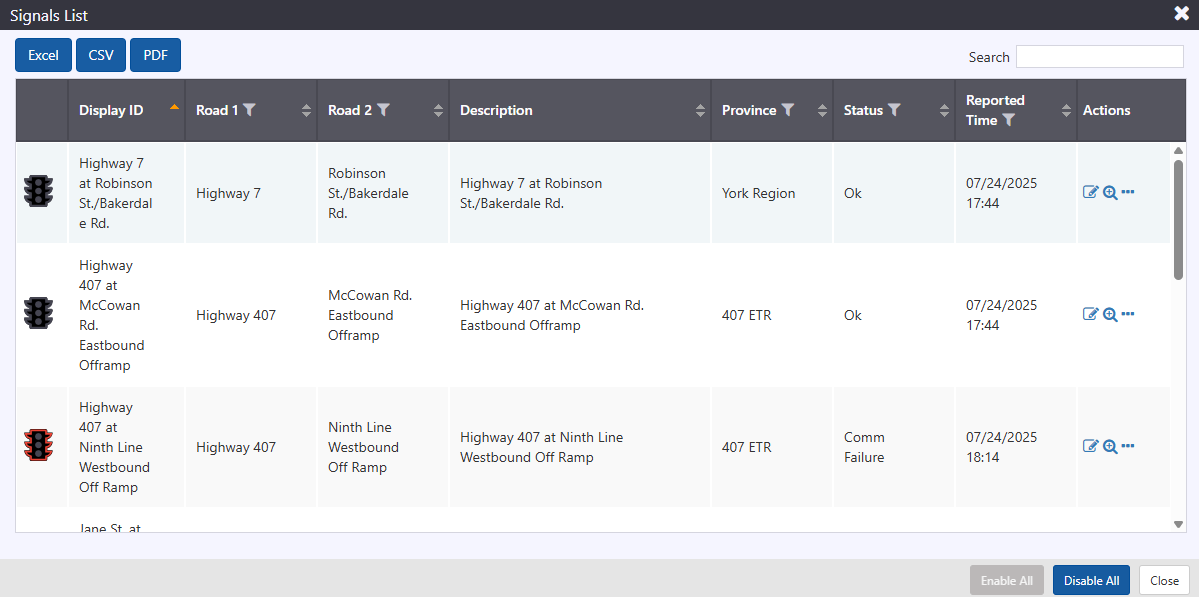
To open a list of all signals configured in the ATMS, right click on the Signal icon on the action panel and select the signal List option.

The signal list indicates:
- The Display ID of the Signal
- The roadway and description of each device
- The status of the device (OK, Disabled or Enabled)
- Reported time
Manage the signal
Each row contains a set of buttons that can be used to manage the signal.
| ICON | DESCRIPTION |
|---|---|
 | Center the map on the signal |
 | Open Menu with options to
|
Click on to configure, manage display and send to personal video wall.

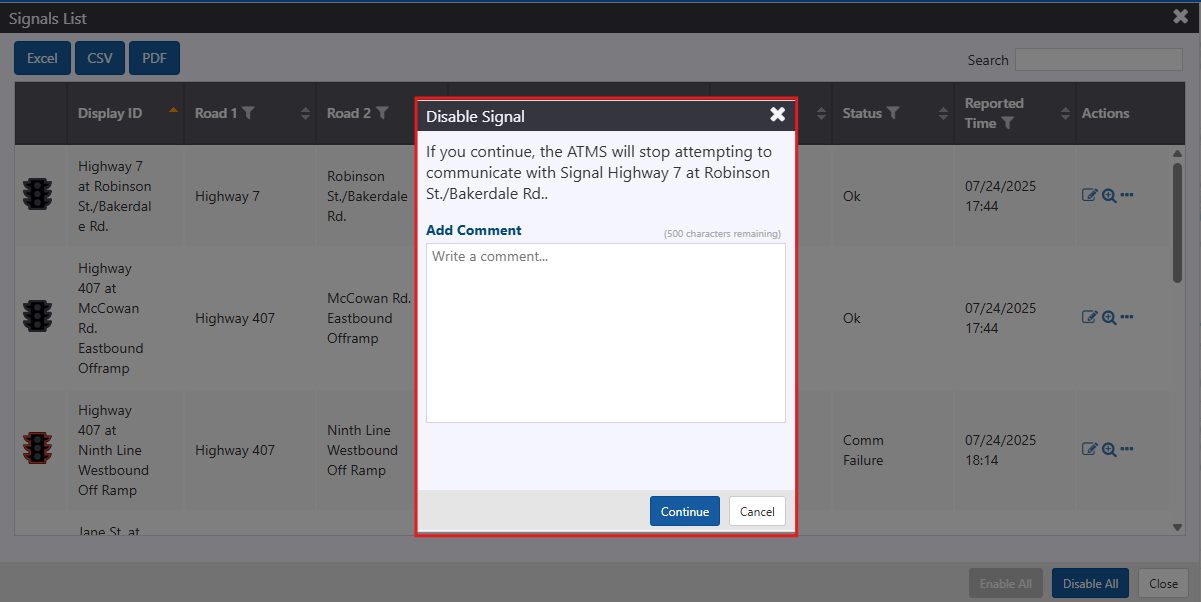
Enable / Disable
Click on Disable. Add comment and click Continue to Disable a signal.
Click on icon to view the Disabled signal view on map.

Properties
Click on pencil icon to view the properties of signal.
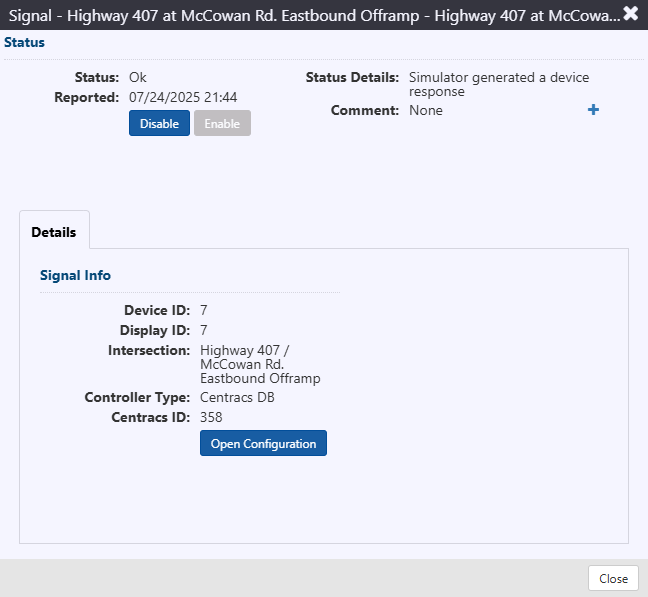
User can perform following actions from properties view as well :
- Enable / Disable a signal
- Open configuration page
- Add comment to the signal
- View / Download files added to the signal (if any).