Signals
Configuration List
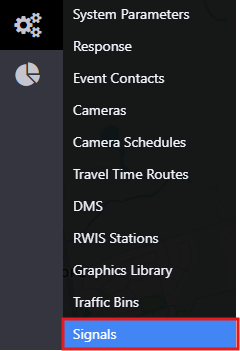
To access a list of all configured Signals, hover over the configuration  icon in the navigation menu and select Signals. A window with list of all Signals configured in the ATMS is populated.
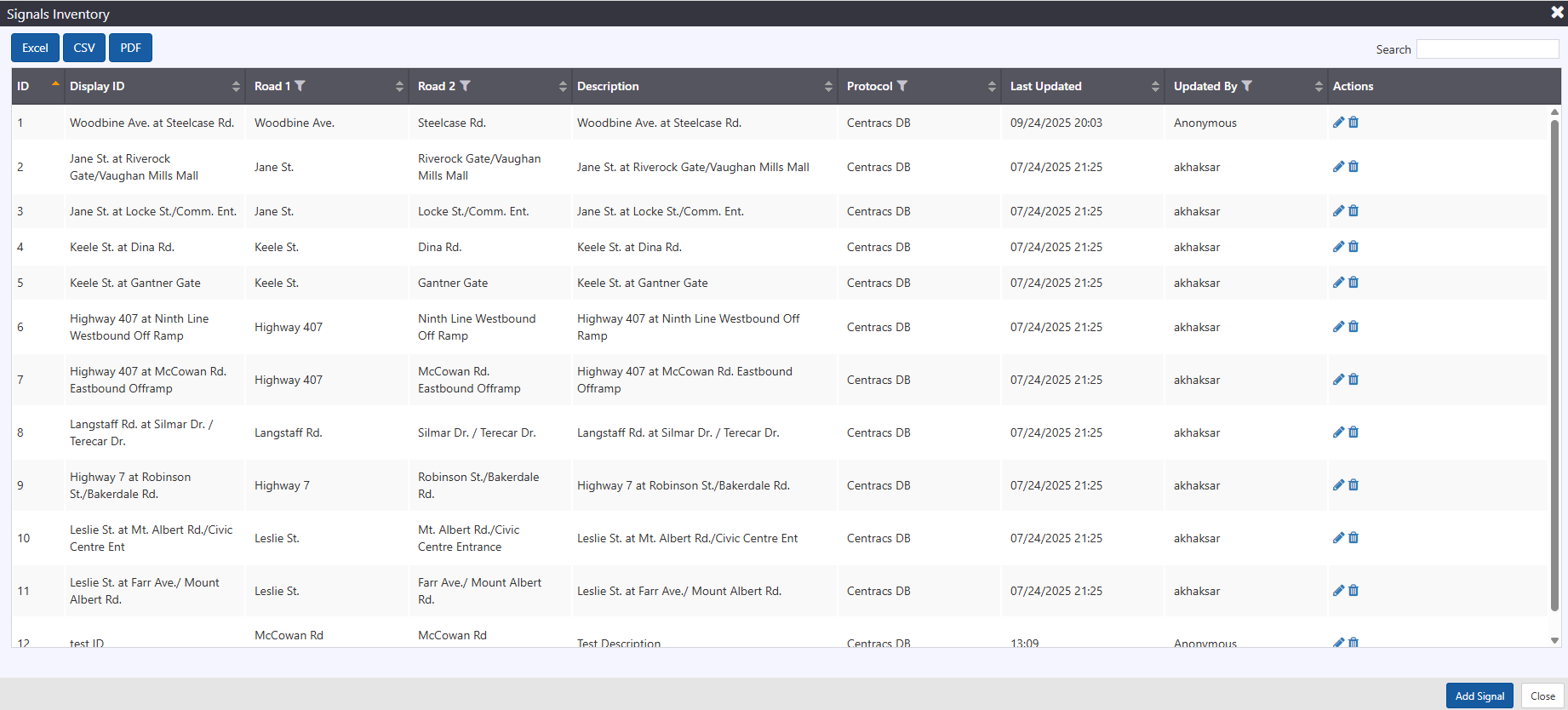
The configuration list window allows user to:
- view a list of configured Signals. See section Signal Configuration for description of information included
- add a new signal by clicking the
 button at the right bottom corner of the window
 - delete an existing signal
- edit configuration of an existing signal
- export signal inventory information in Excel, CSV or PDF format
Signal Configuration
Signal configuration is easily accessible from an existing Signal, either from the right-click menu on a device, or through the menu at the right of the device in the signal List. The signal Configuration View allows authorized users to manage the configuration of each signal, including general and communication.
General
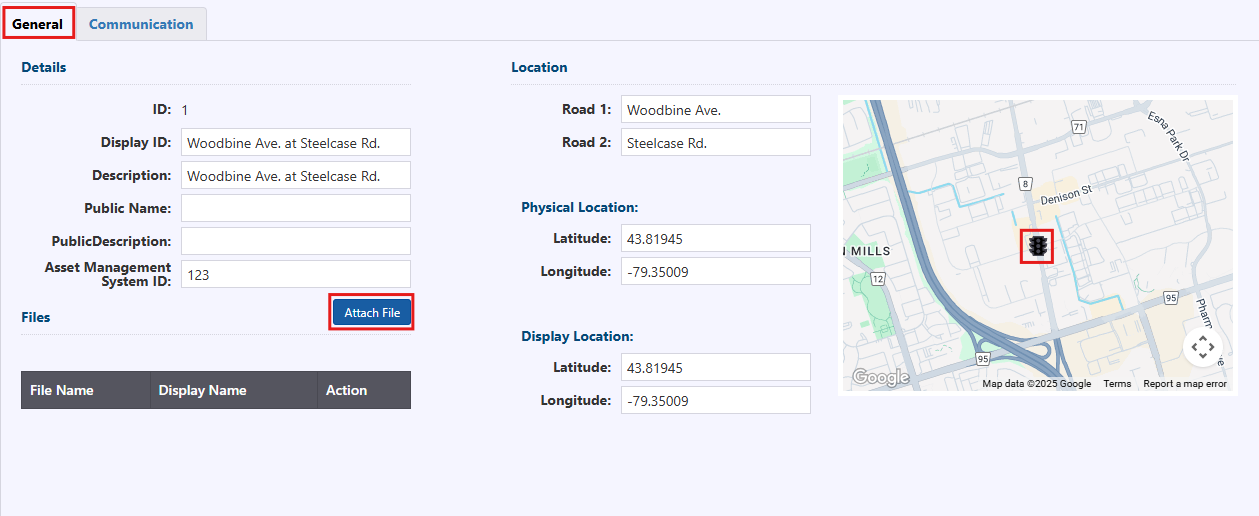
The general information of the signal is entered on the 'General' tab, which includes a map presenting the location of the signal, which is updated as signal coordinates are updated. The general information included for a signal includes:
- ID: unique ID automatically assigned by the system upon creation
- Display ID: integer ID
- Description: description of the device
- Public Name: public name of device
- Public description: description of device location
- Asset management Id: enter the id used for Asset management of the device
- Road 1: directional roadway associated with the device.
- Road 2: directional roadway associated with the device.
- Physical location: latitude and longitude for the physical location of the station
- Display location: latitude and longitude to use as the location for mapping The inset map will show the signal icon on the location selected with respective icon.
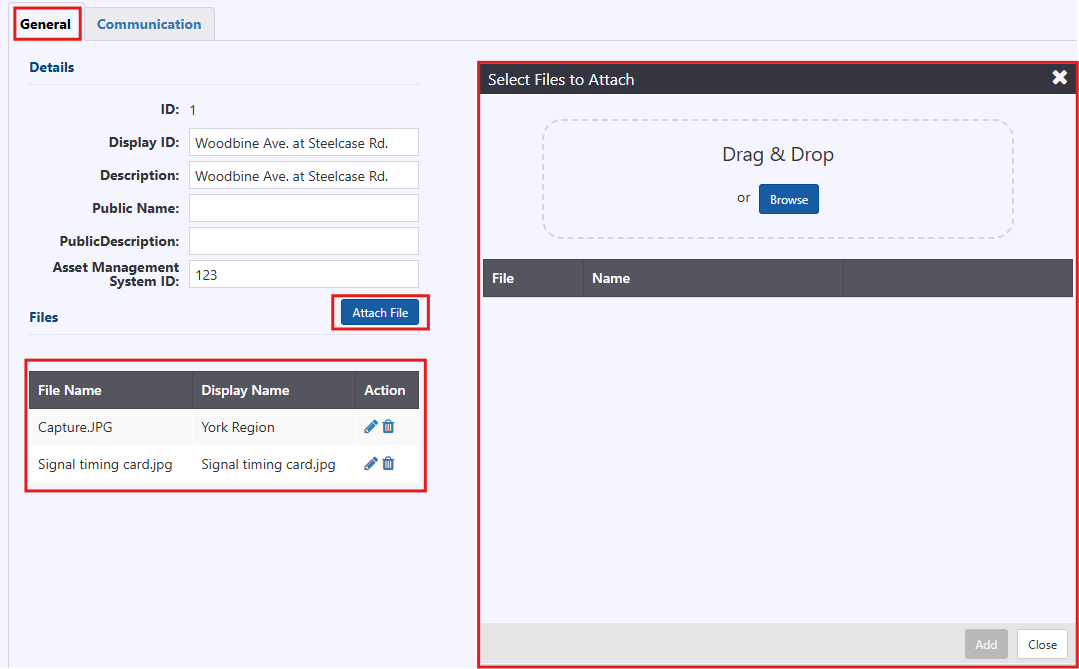
Files To attach files to the Signals, click Attach File button. Drag & Drop or click Browse to add the file. Click Add button to add files to Signal configuration. Attached files in the signals configuration are displayed in the signal details view.
:::note
Supported files allow PDF, Word, Excel, CSV, TXT, standard image formats AND a file extension type of .DRF (needed to support York's signal timing cards).
:::
Communication
Protocol: Centracs protocol is used to communicate to and control the signal.
Polling Interval(s): enter value for polling cycle between signal. Select Default.
Centracs ID: unique id used to connect to the centracs database.
noteThe communication tab only supports the Centracs DB interface protocol at this time, with an option to specify the ID of the device in Centracs.

Remove Signal
To remove the Signal from ATMS, click on the trash icon in Signal Inventory. Confirm the deletion by clicking Continue button and Signal is removed from ATMS.
:::note
The Signals are mapped with the Centracs database and are synced at configured time. Same signal can be added to ATMS by using same Centracs ID.
:::
