CCTV Time-lapse
The system includes CCTV Time Lapse capabilities, where snapshots are captured from cameras on a regular time interval, and can be viewed in a time-lapse video. Click on the CCTV Time-lapse option from CCTV menu on the Action Panel to add, modify, view and/or remove time lapses.

The CCTV time-lapse view is divided into two sections: Active and Completed time-lapses. The Active section shows any ongoing time-lapses (those where the system is actively capturing new images). The Completed section shows previously completed time-lapses (where the system is no longer capturing new images).
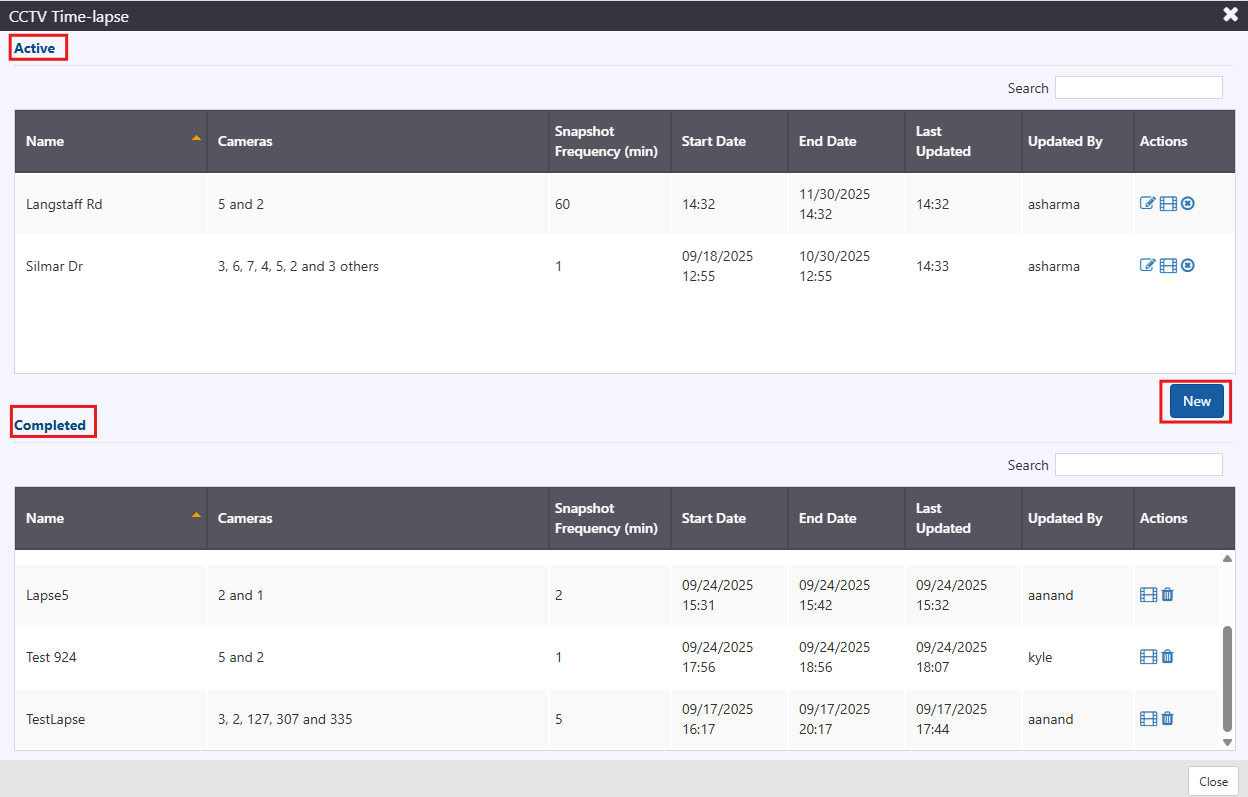
Add Time-lapse
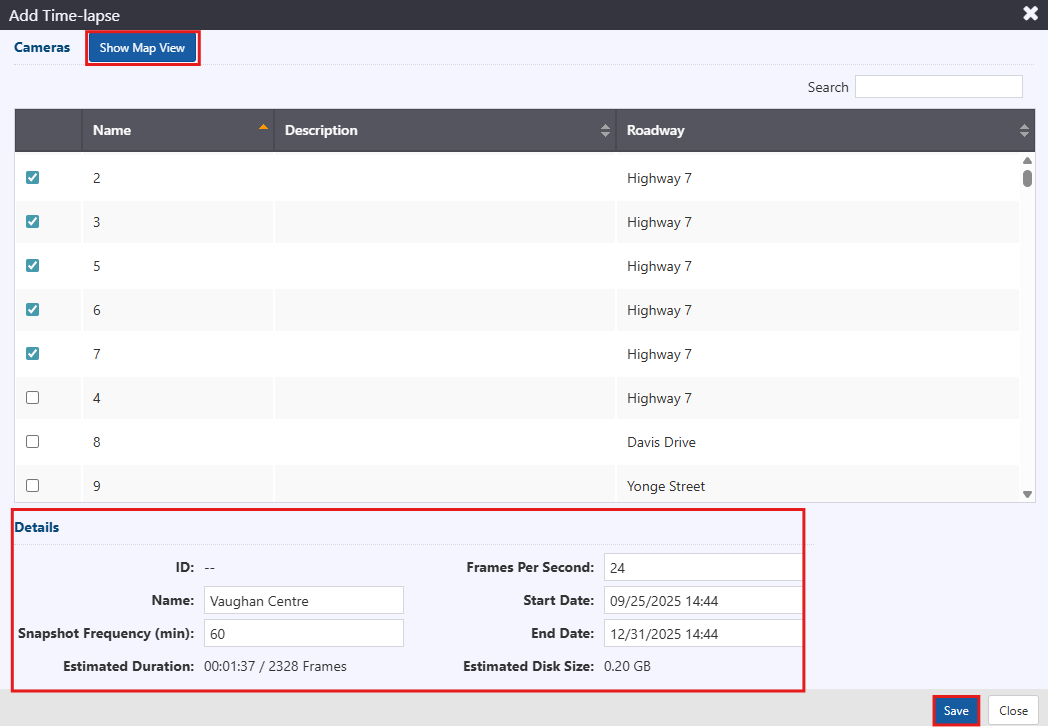
Click the New button on the CCTV time-lapse page to add a time-lapse. To create a time lapse, select the cameras from which images should be captured from using either the table or map view – left click on a table row or camera map icon to add or remove it from the time lapse. Enter following details for the selected camera to create a time-lapse:
- Name: a descriptive name to use for the time lapse
- Snapshot Frequency(min): the frequency at which to capture snapshots from each camera included the time lapse
- Frames per second: the frame rate to use for the time lapse video the system generates from the captured images
- Start Date: the start date and time for the time lapse – this is when the first image will be captured, and images will be captured at the specified frequency from this point forward
- End Date: end date and time for the time-lapse
The system creates a time lapse video for each camera included in the time lapse.
The system calculates and displays an estimated duration for each time lapse video that will be generated, based on the total number of images to be captured, and the selected frame rate. It also provides an estimate of the disk space that will be needed to store the time lapse videos.
Click Save to add the time-lapse.
To modify an active time-lapse click the  icon.
icon.
To complete a time-lapse before its scheduled end time, click the  icon.
icon.
To view the video for any of the cameras included in a time lapse, click the  icon.
icon.
The system will not capture images from cameras that are blocked or disabled. If cameras included in an active time lapse are blocked/disabled, there may be a gap in the captured images and resulting time lapse video.
View Time-lapse
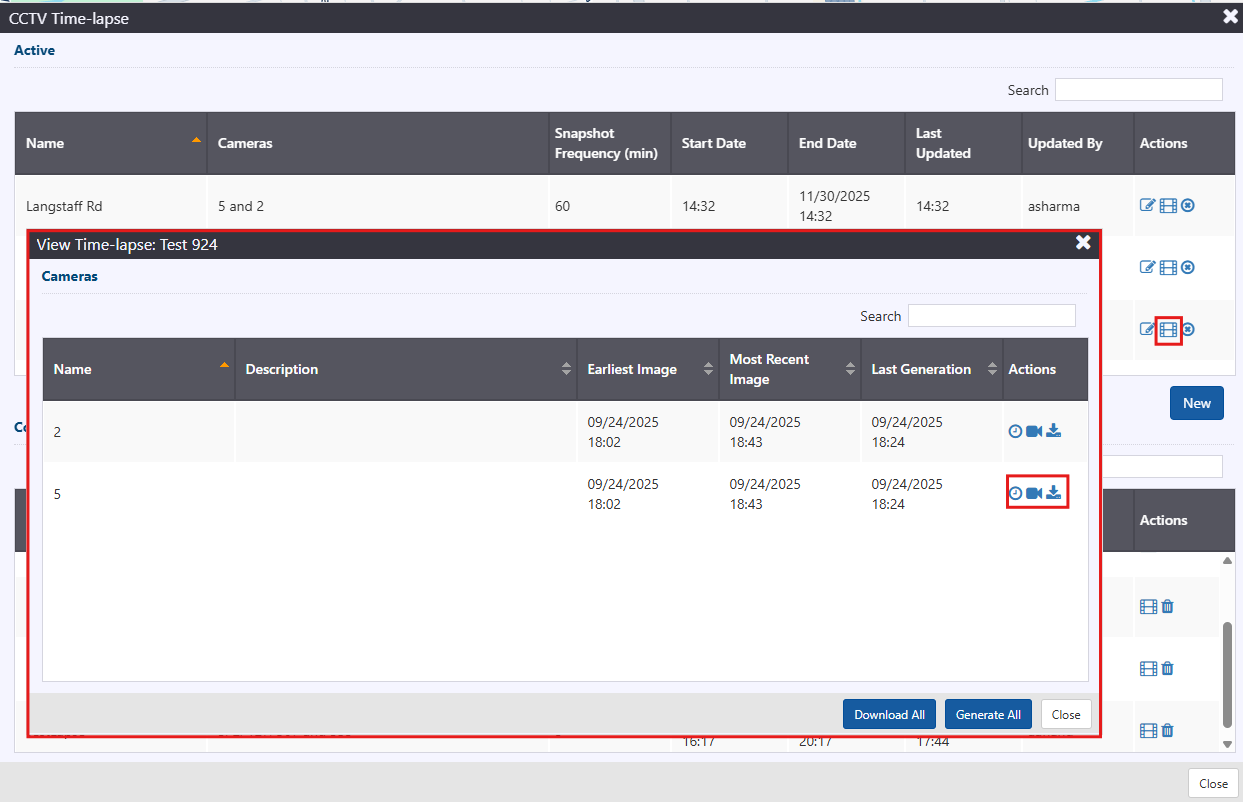
To access the video for a camera included in a time-lapse, click the icon in the actions column for an Active or Completed time lapse. This opens the View Time-lapse window, which displays all cameras included in the time lapse
To generate a time lapse video with all captured images, click  icon. The system automatically generates a video for all cameras in the time-lapse on a configured interval. For completed time lapses it will not be necessary to click the generate button, but for active time lapses this will ensure that the time lapse video includes the most recently captured images.
To view the time lapse video for a camera, click the  icon. This opens a video viewing window with options to play, pause, adjust playback speed and search through the video using a progress bar.
To download the most recently generated time-lapse video for a camera, click the  icon.
icon.
Delete Time-lapse
To delete a time-lapse, click the trash can icon in the actions column for a Completed time-lapse.
If a time-lapse is deleted, the system will remove all captured images and generated time-lapse videos for that time-lapse. If needed, ensure that the time-lapse video has been downloaded and saved prior to deleting the time-lapse from the ATMS.